A customer can find your business, trust the reviews, and still leave without booking. Google Business appointment links reduce that friction by placing a direct scheduling option on your Google Business Profile.
The setup is usually quick, but the details matter. A weak link sends people to your homepage, while a well-tracked link shows which profile visits lead to real appointments. Here’s how to set up the link, choose the right URL, and measure what happens next.
Google Business appointment links: what they do
An appointment link gives searchers a direct path to schedule with your business. Depending on your profile and location, customers may see a booking option alongside actions such as calling, getting directions, or visiting your website.
The link can point to:
- A booking page on your website
- A scheduling platform
- A service-specific appointment page
- A provider connected through Google’s booking system
The link itself doesn’t create an appointment calendar. It sends the customer to the page where your availability, services, and booking details already exist.
That distinction matters. If your profile link opens a general homepage, customers still need to find the right service and booking button. Every extra step creates another chance for them to leave.
Google’s labels can vary. You may see Bookings, Booking, Appointment links, or Links to your online booking tools. The options can also depend on your business category, country, profile type, and booking provider. Not every business receives the same appointment-link features.
A Google Business appointment link should take customers directly to the action they came to complete, not make them search your website for it.
Google may also let you add more than one link for a transaction type. If that option appears, you can select a preferred link. Use the page that best matches your primary service or booking goal.
Prepare the right booking URL first
Before opening your profile, choose the exact page customers should visit. We recommend testing the URL on a phone because many Google Business Profile visitors are ready to act while they’re away from a desktop.
A good booking URL should:
- Open the scheduling page directly
- Use HTTPS
- Show the correct business location
- Load without a login requirement, unless one is necessary
- Work well on mobile devices
- Match the services and appointment types shown in your profile
Avoid using your homepage unless it contains an obvious booking option above the fold. A direct service page usually gives the customer a clearer next step.
Check the URL in a private browser window. Confirm that the page loads for someone who isn’t signed in to your website or booking platform. Also check that it doesn’t lead to an old URL that redirects several times.
The final destination should return a normal working page. Redirects can remove tracking parameters, create loading delays, or send customers to the wrong location. Use the current, canonical version of the page.
If you use a third-party booking system, check whether it keeps query parameters in the URL. This matters when you add UTM tracking later. Some platforms preserve those parameters, while others strip them or send visitors through a separate domain.
How to set up Google Business appointment links
The manual setup is the most flexible option when you already have a booking page. Google also offers provider connections for eligible businesses.
Add a direct booking link manually
Use these steps for a URL you control or a direct scheduling URL supplied by your booking platform.
- Sign in to the Google account that manages the correct Business Profile.
- Search for your business name on Google, or open the profile through Google Maps.
- In Google Search, select Booking when that option appears. In Google Maps, select Edit profile, then open the relevant booking or transaction section.
- Choose Add link. If a link already exists, Google may show Add another link instead.
- Paste the complete booking URL into the field.
- Save the change and wait for the profile to update.
Google’s guide to booking links covers the current profile workflow and the related link options.
After saving, check the public profile as a customer would see it. Look for the booking button in Google Search and Maps. The public display may take some time to update, and the placement can differ by device.

Connect an eligible booking provider
A provider connection is different from pasting a URL. In this setup, Google connects your profile with a supported scheduling provider that manages services and availability.
The usual path is:
- Open the Business Profile and select Bookings.
- Choose Get started.
- Select an available booking provider.
- Follow the provider’s instructions.
- Select Done when the setup is complete.
Google’s provider setup instructions explain this process. The provider list you see may not match the list available to another business.
Provider connections can be useful when your scheduling system has changing availability, multiple staff members, or several appointment types. Still, review the public booking experience after connecting it. Confirm that the right services, location, hours, and appointment times appear.
If your provider doesn’t appear, use a manual appointment link if Google makes that option available. Don’t choose a different provider only because it appears in the list. The booking page must match the system your team actually uses.
Set the preferred link and test it
If multiple booking URLs appear, choose the one you want Google to show first as the preferred link. Select the primary location or service page rather than an outdated campaign page.
Then test the link in three places:
- Google Search on a desktop
- Google Maps on a mobile phone
- A private browser window where you aren’t signed in
Complete the first few booking steps without submitting a real appointment. Look for broken buttons, incorrect hours, missing services, or a location mismatch.
For another view of the manual field, see this explanation of adding a booking link to a Google Business Profile.
Track appointment links with UTM parameters
Google Business appointment links can send traffic to your website, but a basic pageview won’t tell you where that visitor came from. UTM parameters add campaign details to the URL so analytics tools can identify the source.
Use lowercase values and keep the naming pattern consistent. A simple appointment URL might look like this:
https://yoursite.com/appointments/?utm_source=gbp&utm_medium=organic&utm_campaign=appointment
For the main website link, you could use:
https://yoursite.com/?utm_source=gbp&utm_medium=organic&utm_campaign=gbp-profile
If you manage several locations, add a clear content value:
https://yoursite.com/appointments/?utm_source=gbp&utm_medium=organic&utm_campaign=appointment&utm_content=main-location
The three most useful parameters are:
utm_sourceidentifies where the visit came from, such asgbp.utm_mediumidentifies the channel, such asorganic.utm_campaignidentifies the purpose, such asappointment.
Use utm_content when you need to separate locations, services, or link types.
Don’t add UTM parameters to internal links on your website. UTMs are for visits arriving from an outside source. Adding them to internal links can overwrite the original source and make your reports harder to trust.
The tagged URL should be the actual destination you add to the profile. Use a canonical HTTPS URL and avoid a link that redirects to another page. If your booking provider removes UTM parameters, use its own source reporting or send traffic first to a booking page on your website.
Measure clicks, sessions, and completed bookings
UTM tracking answers one question: where did the website session come from? It doesn’t automatically prove that the visitor completed an appointment.
Use several data points together:
- Google Business Profile Performance can show profile-level interactions and activity available for your listing.
- Google Analytics 4 can show sessions tied to the UTM source, medium, and campaign.
- Your booking platform can show scheduled appointments, cancellations, and completed bookings.
- A thank-you page or conversion event can connect website visits with completed booking actions.
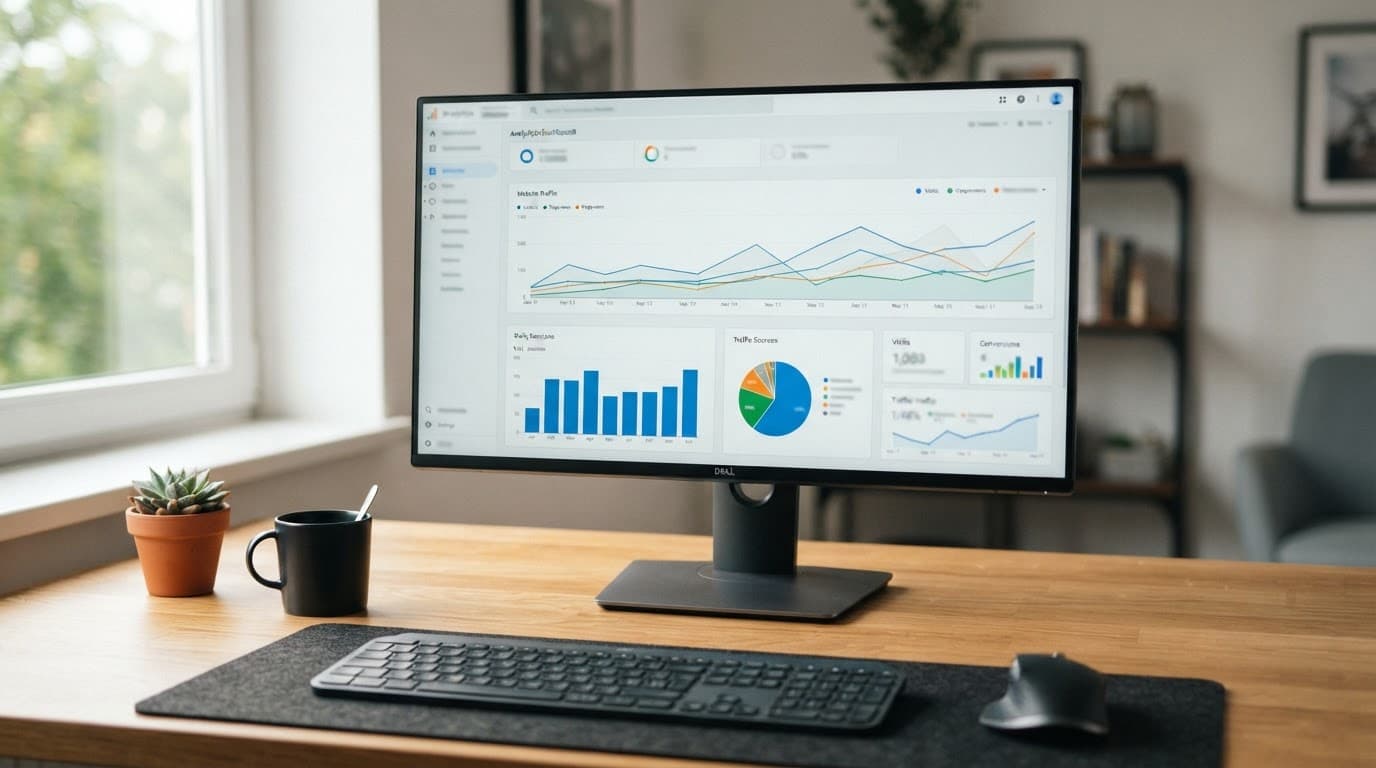
In GA4, open Reports, then Acquisition, then Traffic acquisition. Filter or compare sessions by source and medium, such as gbp / organic. Review the campaign value to separate appointment traffic from general profile visits.
For stronger reporting, track the booking action as a conversion. A click on the “Book now” button measures intent, while a confirmation page or completed booking event measures the result. Those are different numbers, so don’t treat them as the same.
If the booking process moves to another domain, analytics may lose the original session source unless cross-domain tracking is configured correctly. Ask your booking provider whether it supports GA4 or passes campaign data into its reports.
Google Business appointment links tracking checklist
Review the profile and reports regularly. A tracking setup can stop working when a website page changes, a provider updates its booking flow, or a profile is edited by another manager.
Use this checklist:
- Confirm the appointment URL opens the correct booking page.
- Test the link on Google Search, Google Maps, desktop, and mobile.
- Check that the page uses HTTPS and loads without unnecessary redirects.
- Use lowercase UTM values across every location.
- Keep
utm_source,utm_medium, andutm_campaignconsistent. - Confirm GA4 records sessions under the expected source and campaign.
- Check whether the booking provider preserves UTM parameters.
- Compare booking clicks with completed appointments.
- Review the profile after major website or scheduling changes.
- Remove outdated links and set the correct preferred link.
If the booking button doesn’t appear, first verify that the feature is available for your category and region. Then check your profile permissions, provider eligibility, and URL. Google doesn’t display identical booking options for every business.
Conclusion
A useful appointment link removes a step between a Google search and a scheduled visit. Add the direct booking page, test the public experience, and use a consistent UTM pattern when you control the destination.
The best report combines profile activity, GA4 sessions, and booking-platform results. When those numbers line up, your Google Business appointment links become more than a button. They become a measurable part of your local SEO process.