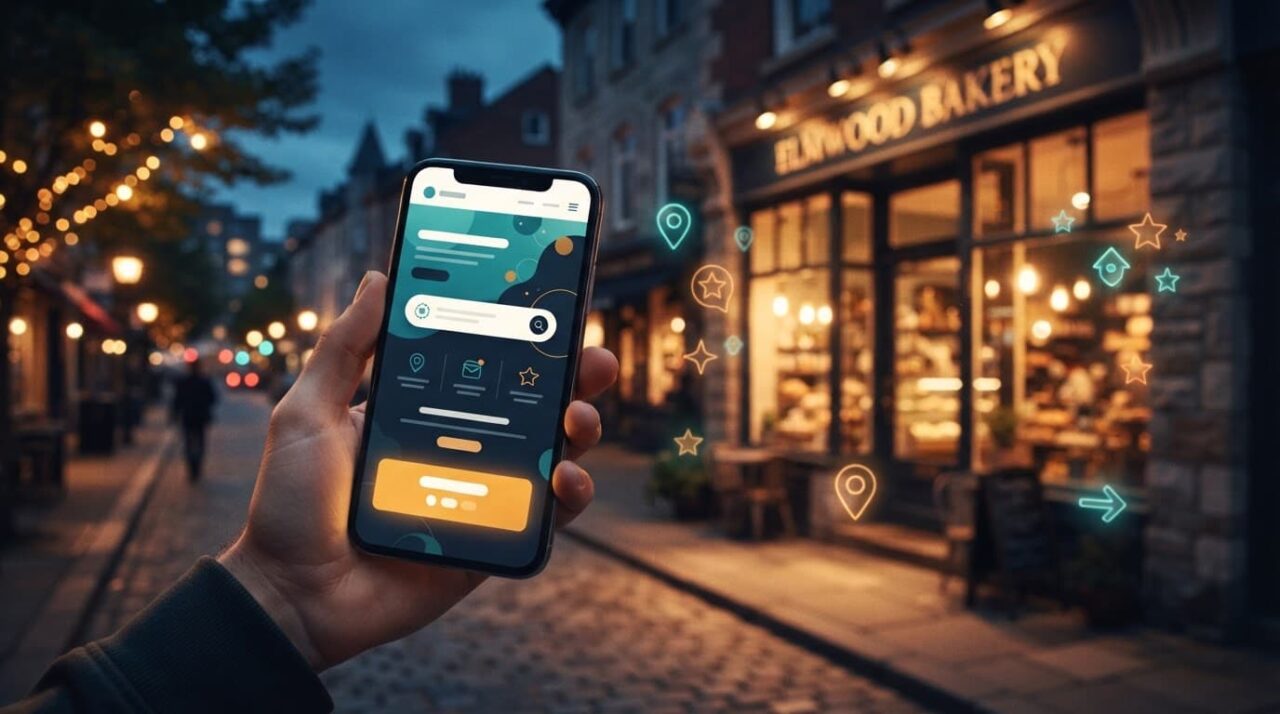
This geographic mismatch can reduce local business visibility, making a good business look invisible to nearby customers. Your Google Business Profile may appear in a neighboring city, while your actual location barely appears in results.
That doesn't always mean Google has made a mistake. City borders, searcher location, search wording, and conflicting geographic signals can affect where a business appears. We can fix the problem by finding the source first, then correcting the signals that matter.
Key Takeaways
- Separate Google Maps visibility from organic rankings because each system evaluates geographic signals differently.
- Verify the pattern with consistent searches, map locations, and a grid rank tracker instead of relying on one manual search.
- Correct your Google Business Profile address, service area, categories, services, and NAP information so they accurately reflect how the business operates.
- Build honest local relevance with useful city pages, authentic reviews, consistent citations, and genuine local links; these signals cannot completely overcome distance.
- Target surrounding cities with real service information, and investigate indexing, canonical, internal-link, and content issues before responding to sudden organic ranking drops.
How to Diagnose a Local Ranking Wrong City Problem
Start by identifying whether the issue affects your business profile, your website, or both. These ranking systems overlap, but they don't work in exactly the same way.
Map results and organic results are different
Google Maps and other map-based features usually show businesses based on three core local ranking factors: relevance, distance, and prominence. Google explains that these factors measure query match, proximity to the searcher or queried location, and how well-known the business is. Review Google's local ranking guidance before changing your profile.
Organic results work differently. Location pages can rank for another city when titles, internal links, backlinks, or local keywords make it seem relevant. AI Overviews can change what appears above organic listings, but they shouldn't be confused with the local pack or Google Maps rankings. Your profile may still have a separate distance problem.
Evaluate the map and organic surfaces separately in local search results:
- Search the map for your main service and city.
- Search Google for the same phrase and review the map results.
- Look at the traditional organic listings below the map results.
- Record whether the wrong-city result is your profile, your location page, or both.

Searcher location can change the answer
Two people can search the same phrase and see different local rankings, so there isn't one universal local search ranking. A person searching near your office may see your business, while someone several miles away sees a competitor closer to them.
Google can also interpret a city name as a search location, while city borders and map data can affect apparent distance. A search for "roof repair in Florence" may return businesses near Florence, even if those businesses have a mailing address in another municipality.
This is why one manual search isn't enough evidence. Incognito mode removes some personalization, but it doesn't create a neutral map location. Your device, IP address, Google account, and chosen map center can still affect what appears.
Verify the Problem Before Changing Your Profile
Local SEO changes work best after we establish a clear baseline. If you change your coverage settings, category, page copy, and review strategy at the same time, you won't know which change affected your local search ranking.
Run consistent local searches
Use the same keyword, device type, language, and search location each time. Write down the date and result. For map testing, recenter Google Maps around the intended city, then search grid points on both sides of nearby city borders.
Record these local search results, noting whether each appears in the local pack or organic listings:
- Your primary service plus your actual city.
- Your primary service plus the neighboring city where you appear.
- A branded search for your business name and city.
- A map search at several points around your office or target area.
A grid rank tracker tests multiple points across a defined area, giving you a better picture than one search. Whitespark Local Search Grid and BrightLocal can check rankings at multiple points across that area.
The grid rank tracker report can reveal strong visibility near the wrong city or weak visibility near your office. It may also show a gradual decline as the search moves away from your address.

Check whether the profile or page is at fault
If the Google Business Profile ranks in the wrong city but your website page ranks correctly, inspect the profile first. Verify its physical address, coverage settings, category, and business information.
If the profile is accurate but a wrong-city URL ranks organically instead of your intended location pages, inspect the website. Look for:
- A title tag that names the wrong city.
- Internal links pointing to the wrong location page.
- City names repeated in boilerplate sections.
- A page that combines several cities without clear service boundaries.
- LocalBusiness schema with an incorrect address or coverage details.
- Duplicate or near-identical location pages.
Search Console can show which URL Google associates with a city query. Compare the page receiving impressions with the page you intended to rank. That step often exposes a targeting problem that a map search won't reveal.
Correct Google Business Profile Location Signals
Your Google Business Profile should describe where the business operates in real life. It shouldn't list every city that could produce an impression.
Narrow the service area to real customers
A business with a service area visits or delivers to customers instead of serving them at its business address. Google provides current service-area instructions for service-area and hybrid businesses.
Review your service area settings before adding or removing cities. Remove places you don't regularly serve. Use actual cities, towns, or defined areas that match your operations. Listing an entire county may sound helpful, but it can weaken the geographic message and attract searches that don't fit your business.
Don't add a neighboring city only because its search volume looks higher. If most customers come from three nearby communities, those places are more useful than a broad list that describes your entire region.
Update these fields carefully:
- Primary and secondary business categories.
- Services and service descriptions.
- Business hours and contact details.
- Service areas.
- Address visibility, when your business is eligible to display one.
Also verify your NAP information. The business name, address, and phone details should match across the profile.
Avoid placing city names in the business name unless they are part of your real-world business name. Keyword-stuffed names create accuracy problems and can violate Google's rules.
Review the physical address and city borders
A real physical address near city borders may fall inside one municipality, even when customers identify with another. Google uses Google Maps data to measure distance, and it may not follow postal or county boundaries. That proximity factor can affect local rankings, making your profile stronger in one city than another.
Moving an office just to influence rankings is rarely a sensible first step. The location must be real and eligible, not a virtual office, mailbox, or borrowed location. Google's business representation guidelines explain how businesses should represent their address and service area.
If your address is hidden because you operate from a customer's location, don't invent a public address. Use the correct setup for a service-area business and strengthen the website signals for the places you actually serve.
Build Stronger Signals for the Intended City
Correct profile settings remove confusion, but they don't automatically build relevance or trust through local SEO. Google still needs evidence that your business is relevant and trusted in the target location.
Improve the local landing page
Create a useful location page for a city only when you serve customers there and can provide real information. It can strengthen your local search ranking by explaining the services, problems you solve, coverage, and contact options.
Use local keywords naturally in the page title, heading, copy, image descriptions, and internal links. Don't repeat the city in every paragraph or imply service beyond actual city borders. Thin pages that swap one city name for another usually offer little value and may lose visibility after a ranking update.
Add details that are genuinely tied to the location, such as:
- Nearby neighborhoods you serve.
- Local scheduling or travel information.
- Service examples from that area.
- Testimonials from customers in the city.
- Relevant local regulations or property types.
Keep each location page distinct by comparing useful local details with genuine local competitors, rather than copying their city keywords. A plumber may discuss older housing stock in one community and seasonal maintenance needs in another, but only if those details are accurate.
Improve trust without manipulating location
Customer reviews can support local rankings when they're recent and describe the service clearly. They can build prominence, but they can't erase a distance limitation. Ask real customers for honest feedback after completed work. Don't offer rewards for positive reviews or write reviews on your customers' behalf.
Respond to reviews with useful, specific replies. Mention the service when it fits the conversation, but don't paste the same city keyword into every response.
Keep your NAP information, meaning your business name, address, and phone number, consistent across your website, directories, social profiles, and industry listings. Correct conflicting information when you find it. Accurate local citations help customers and search engines connect the same business across the web.
Local links can also help. A sponsorship, chamber listing, trade association profile, or local news mention is more useful when it reflects a real relationship. Buying dozens of low-quality directory links won't solve a distance problem.
Handle Surrounding Cities and Sudden Page Drops
You may want customers in surrounding cities without moving your office. That is possible, but the approach depends on whether you want map visibility or organic visibility.
Target a surrounding city honestly
A business with a defined service area can serve nearby customers through its profile and website. Distance still affects local rankings. City borders may leave an out-of-town business behind an equally relevant competitor inside the target municipality.
Focus on distinct location pages, city-specific service information, local partnerships, and authentic customer reviews from nearby customers. Build a useful presence over time instead of creating several pages with nearly identical copy.
For multi-location brands, create dedicated location pages and profiles for each real, eligible location with a physical address. Don't create separate profiles for one office just because it serves several cities. That can create duplicate listings and confuse customers.
Investigate sudden organic ranking drops
A sudden local search ranking drop may indicate an indexing or quality problem rather than a profile problem. AI Overviews can also change the visible organic layout. Check whether the URL is indexed, whether the canonical points to the correct page, and whether important parts of the site still link to it.
Review recent changes in:
- Page titles and headings.
- Internal links.
- Canonical tags.
- Redirects and deleted URLs.
- Robots.txt and noindex settings.
- Programmatic pages created with little original content.
Compare the affected page with the pages that now rank. Look for clearer service information, stronger local proof, and better page structure. Don't respond by adding more city pages until you know why the existing page lost visibility.
Frequently Asked Questions
Why is my business ranking in the wrong city?
Search location, city borders, map data, distance, and conflicting geographic signals can all affect which city appears in local results. Your profile may also be relevant to a neighboring city while remaining less visible near your actual address.
How can I confirm whether the problem affects my profile or website?
Run consistent searches for your main service and both cities, then record whether the result is your Google Business Profile, a location page, or both. A local grid rank tracker can show how visibility changes across the area instead of relying on one search.
Should I add the target city to my business name or service area?
Add a city to the business name only when it is part of your real-world business name. Service areas should include only cities or defined areas that you regularly serve, not locations chosen solely for higher search volume.
Can a location page help me rank in a surrounding city?
A useful, distinct location page can improve organic visibility when you genuinely serve that city and include accurate local information. It cannot guarantee map visibility or remove the distance advantage of a competitor located inside the target city.
What should I check after a sudden local ranking drop?
First determine whether the drop affects Maps, organic results, or both. For organic losses, check indexing, canonical tags, internal links, redirects, deleted URLs, robots.txt, noindex settings, and recent thin or programmatic content changes.
Conclusion
A local ranking wrong city issue usually comes down to mixed geographic signals or a location disadvantage. It can also reflect testing that doesn't match real search behavior. Separate Google Maps visibility from organic rankings. Verify the pattern with consistent searches or a grid tool. Then use local SEO to correct profile and page signals that don't match your business.
We can't promise a specific city ranking because local ranking factors include distance, relevance, and prominence. Search features such as AI Overviews can also affect what users see. We can make the business easier to understand, easier to trust, and more accurately connected to the customers you serve, improving local business visibility without guaranteeing a position.