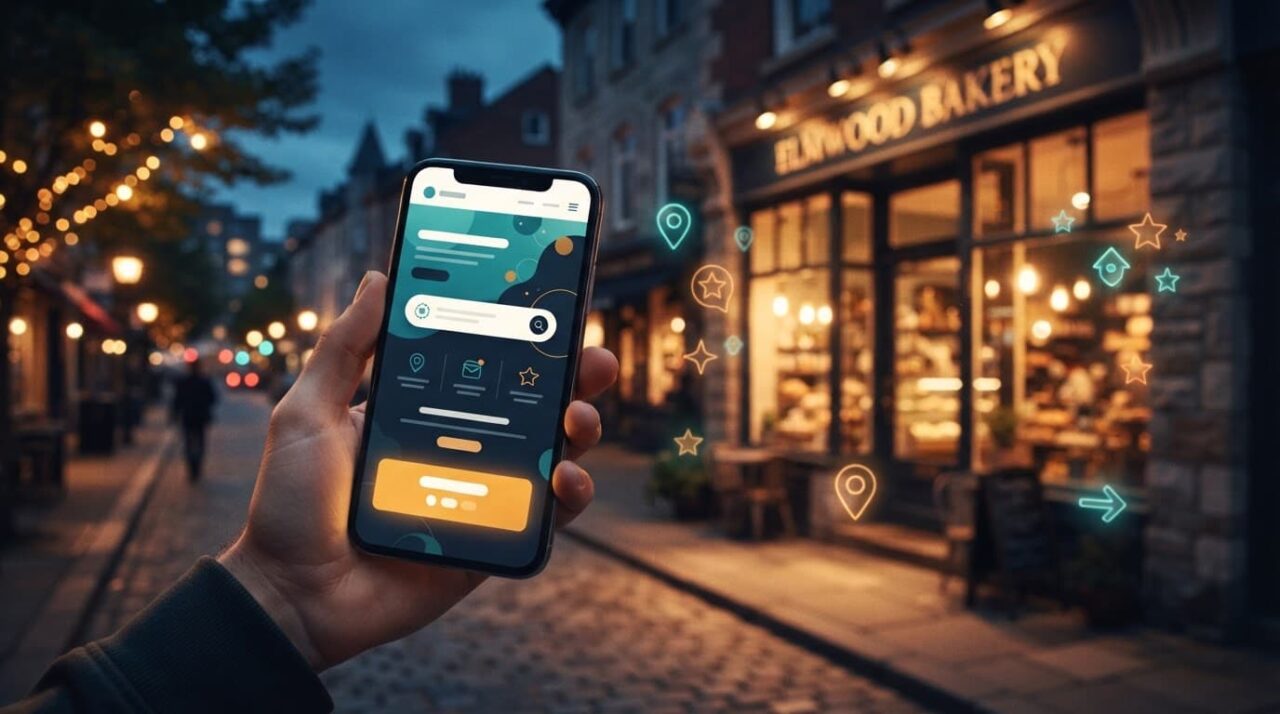
A customer can find your business on Google, check your hours, read reviews, and still leave without seeing your social pages. Google Business Profile social media links help close that gap by placing your active social accounts next to the rest of your business information.
The setup is simple, but the details matter. A broken URL, private account, or unsupported platform can stop the link from saving. Here is how to add the links, fix common problems, and keep them useful after setup.
Why Add Social Profiles to Your Google Business Profile?
Your Google Business Profile often gives people their first look at your business. They may discover you through Google Search or Maps, then look for recent photos, customer conversations, product updates, or behind-the-scenes information before contacting you.
Social profile links give those people a clear next step. Instead of searching for your business name on Instagram or Facebook, they can move directly to the account you want them to see.
This is especially helpful for businesses that rely on visual proof. Restaurants can show current dishes. Contractors can share completed projects. Retail stores can post new products. Local service businesses can answer common questions and show how their work looks in real settings.
A social link helps customers verify that your business is active, but it doesn't replace accurate hours, reviews, services, or contact information.
The links also help keep your public business information connected. Your profile, website, and social pages should all show the same business name, service area, phone number, and general brand details. Our Google Business Profile SEO guide covers the larger profile improvements that support local visibility.
Google maintains instructions for managing profile features in its Business Profile Help Center. The social profile field is separate from your website, booking, and appointment links, so each destination should have a clear purpose.
How Google Business Profile social media links work
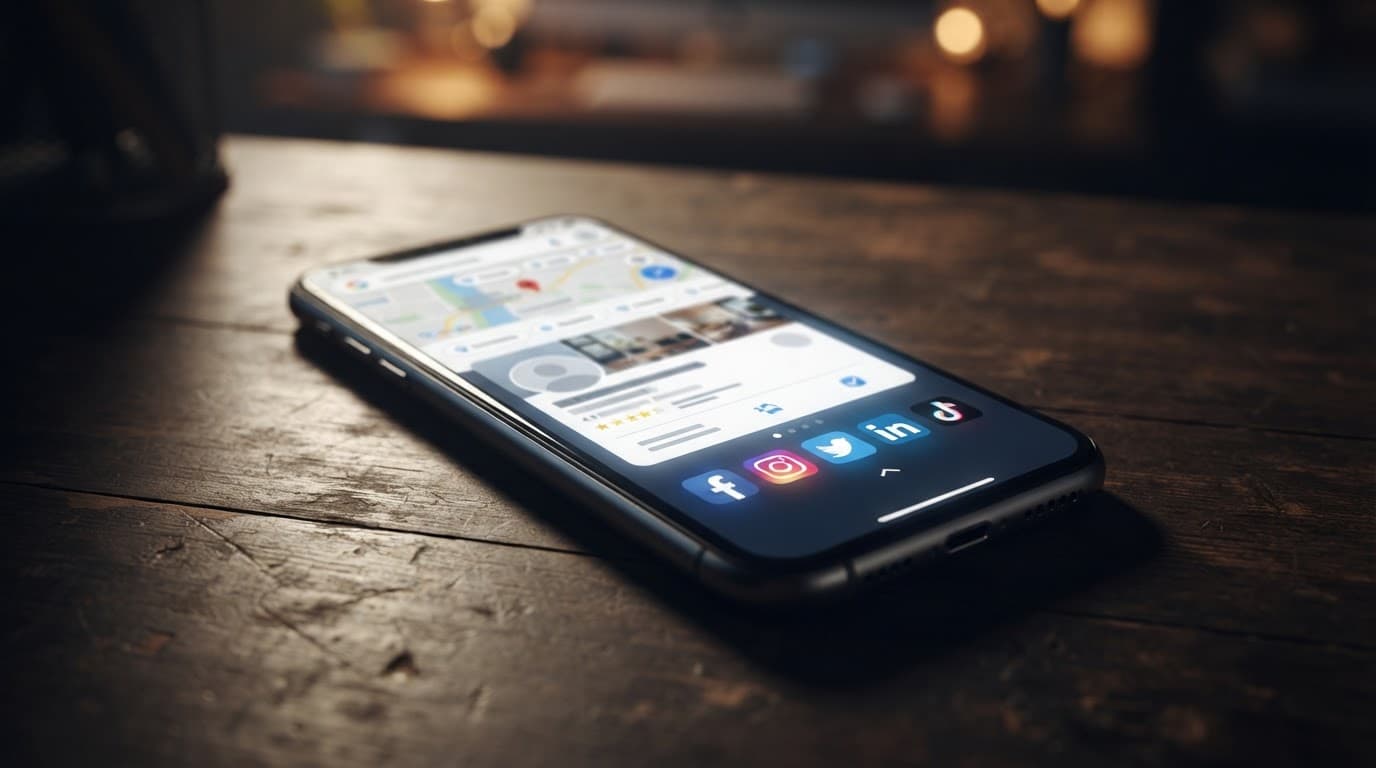
Google provides a dedicated Social profiles area inside the Business Profile editor. You choose a platform, paste the profile's web address, and save the change.
The available platform choices can vary by profile and location. Common options include:
- YouTube
- X, formerly Twitter
- TikTok
You may not see every platform in your account. Use the choices Google provides instead of trying to force a custom platform into the field.
Google generally allows one link per platform. That means you can add one Facebook account, one Instagram account, and one YouTube account. If your business has several locations, each location profile should point to the social account that best represents that location or the wider business.
Use the full public URL for each account. A direct profile address is better than a shortened URL, a temporary campaign link, or a link to a single post. For example, the destination should open your business's Instagram profile, not an image that may be removed later.
Before adding a link, check three things:
- The account belongs to the business or is clearly branded for it.
- The profile is public and visible without a special invitation.
- Recent posts and contact information make the account look active and trustworthy.
A social account with no posts, an unrelated username, or outdated business details can create more confusion than confidence. You don't need to link every platform. Add the accounts that customers actually use.
How to Add Google Business Profile Social Media Links Step by Step
You can edit the profile through Google Search, Google Maps, or the Business Profile management interface. Sign in first with the Google account that manages the listing.

1. Open the correct Business Profile
Search for your business name on Google while signed into the managing account. You can also open the listing in Google Maps.
Check the business name and location before editing. If you manage several listings, it's easy to update the wrong profile.
2. Select “Edit profile”
Choose Edit profile from the business management panel. Depending on the interface, Google may show business information sections in a slightly different order.
Open the area labeled Contact. This is where Google groups key contact details and social profile settings.
3. Find the Social profiles field
Next to Social profiles, select the edit button or pencil icon. If the field is available, Google will show a platform dropdown and a place to enter the web address.
The option may not appear for every listing. Feature availability can depend on Google's current rollout and the profile itself.
4. Choose a social platform
Open the dropdown and select the platform you want to add. Start with the account that matters most to your customers.
For many businesses, that will be Instagram or Facebook. A video-heavy brand may prioritize YouTube. A professional service company may choose LinkedIn if that channel is active and useful to prospects.
5. Paste the full profile URL
Enter the complete public URL in the Web address field. Open the URL in a separate browser tab before saving it.
Make sure it leads to the correct business account. Watch for similar names, old pages, personal profiles, and duplicate location accounts.
6. Save the change
Select Save. Google may review or process the update before the social icon appears publicly.
Search for the business again after saving. Check both Google Search and Google Maps because the profile display can differ between them.
7. Add additional profiles
Return to the Social profiles section and choose Add social profile. Repeat the process for each platform you want to include.
Keep the list focused. Three active accounts are more useful than seven abandoned ones.
Fix Missing or Rejected Social Links
The most common issue is that the Social profiles option isn't visible. First, confirm that you're signed into the correct Google account. A user without the right profile access may be able to view the listing but not edit every field.
Next, open the profile through Google Search and Google Maps. The editor can look different depending on where you start. Look under Edit profile, then Contact, rather than trying to add social URLs to the business description.
If the field still doesn't appear, Google may not have enabled the feature for that listing. Keep the profile information accurate and check again later. Don't replace the missing field with a long list of social URLs in your description. That creates a poor customer experience and doesn't provide the same profile connection.
When a link is rejected, check the URL carefully. Google identifies invalid, broken, duplicated, and unsupported links as common causes of saving problems. Fix the issue one account at a time so you know which URL caused the failure.
Other checks include:
- Remove extra spaces before or after the URL.
- Use the public profile address, not a private account link.
- Confirm the platform matches the account you selected.
- Remove a duplicate link for the same platform.
- Check that the profile hasn't been deleted or renamed.
- Open the link without being signed into the social network.
A page that redirects through several addresses can also cause confusion. Use the simplest stable URL that opens the business account directly.
Keep Social Profiles Useful After Setup
Adding the links is only the first step. Customers will judge the account after they open it, so keep the linked profiles current.
Start with the business name, profile photo, location, service details, and contact information. These details should match your Google Business Profile and website. Small differences can make people wonder whether they found the right company.
Use each platform for a clear purpose. You might post project photos on Instagram, service updates on Facebook, videos on YouTube, and professional announcements on LinkedIn. The exact schedule matters less than having recent, useful activity.
Review the links whenever your business changes. Update them after a rebrand, ownership change, new location, account rename, or platform move. An old social account can remain visible for months unless someone checks it.
Don't confuse social profile links with Google Business Profile posts. Posts let you share announcements, offers, events, and updates directly on the profile. Google provides a separate guide to Business Profile posts, so use posts when the message belongs on Google and social links when customers need access to your broader content.
The strongest setup connects three pieces:
- Your Google profile helps people find and evaluate the business.
- Your website explains services, locations, pricing, and next steps.
- Your social accounts provide current proof and ongoing updates.
Our local keyword research guide can also help you identify the services and local searches that should appear consistently across your profile, website, and social content.
Conclusion
Google Business Profile social media links give customers a direct path to the accounts that show your business today. Add only active, public profiles, use full URLs, and check that every link opens the correct account.
The setup takes a few minutes, but regular maintenance keeps it useful. When your Google profile, website, and social pages agree, customers get fewer reasons to question whether they found the right business.