
The crawl stats report can look busy at first glance. Lots of lines, lots of numbers, and a few labels that sound more complicated than they are.
Once we strip it down, the report tells a simple story. Is Googlebot getting through our site cleanly, or is it hitting slow responses and errors along the way?
As of May 2026, Google still uses the same core data points, even if the menu labels shift a little over time. Let’s make the report easier to read.
What the crawl stats report actually tells us
Googlebot is Google’s crawler. A crawl request is one visit from Google to fetch a page or file on our site. The report shows those visits over the last 90 days, so we can see the pattern, not just a single day.
Google’s Crawl Stats help page explains the main fields clearly, and that is the best place to confirm the current labels. In most accounts, we find the report under Settings > Crawl stats. If we are still getting comfortable with Search Console, our Google Search Console beginner guide is a helpful place to start.
The key thing to remember is this, the report is about crawling, not rankings. It does not tell us whether a page is winning traffic. It tells us whether Google can reach the site, download pages, and get a response without trouble.
The numbers that matter most
The report has a few core metrics that do most of the heavy lifting. When we understand these, the rest of the screen becomes much easier to scan.
| Metric | Plain-English meaning | Normal pattern | Concerning pattern |
|---|---|---|---|
| Total crawl requests | How often Google tries to fetch our content | Steady movement with small rises and dips | Sudden drop or unexplained spike |
| Average response time | How long our server takes to answer | Stable or slowly changing times | Sharp jump that stays high |
| Host status | Whether Google sees delivery or availability problems | Green or clear status with no alerts | Warnings tied to DNS, robots, or server trouble |
| Crawl responses | The mix of 200s, 404s, 5xx errors, and other replies | Mostly successful responses | Rising error counts or repeated 5xx responses |
The table gives us a quick read. Total crawl requests tells us how active Google is. Average response time tells us how fast our server feels from Google’s side. Host status is the one we watch when something looks broken, because it can point to broader availability issues.
A steady report is usually a healthy report. A noisy report only matters when we can’t connect it to a site change.
For more background on how Google rebuilt this report, we can also check Google’s crawl stats redesign notes. The current layout still follows that same structure.

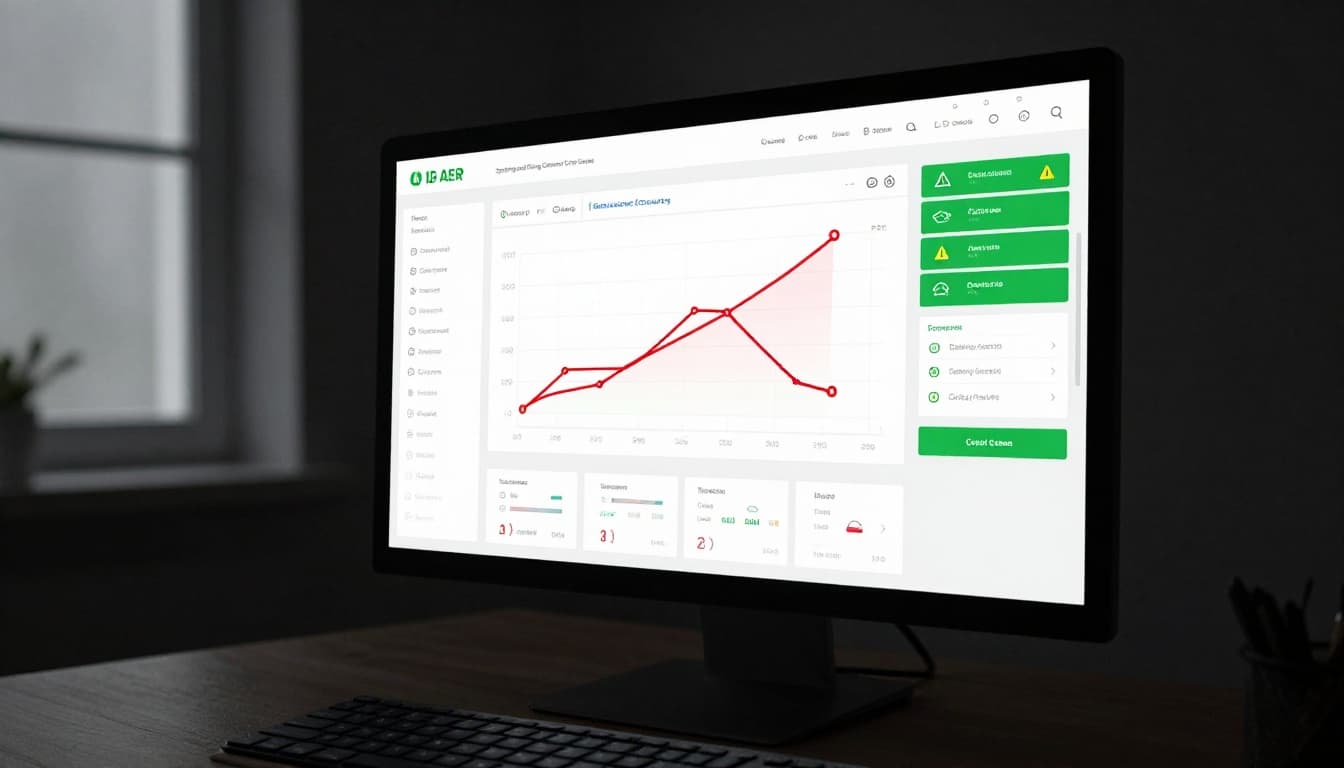
The chart view helps when we want to compare one week with another. We are looking for shape, not perfection. A little movement is normal. A sudden break in the pattern deserves a closer look.
When the report points to trouble
The report is most useful when something changes. A spike, a drop, or a slow response time can tell us where to investigate first.
When crawl requests spike
A spike is not always bad. If we publish a batch of new pages, update templates, or add many internal links, Google may crawl more often. That can be a good sign.
It becomes concerning when the spike lines up with errors, slow pages, or server strain. A crawl surge with lots of 5xx responses is like a delivery truck finding a locked gate over and over. Google keeps trying, but the site is not helping much.
When crawl requests drop
A drop can be harmless if our site has fewer new URLs or fewer updates. Smaller sites often move in waves, not in a straight line.
A drop is worth checking when it follows a site migration, robots.txt change, or internal linking cleanup. If Google suddenly stops visiting important pages, we should compare the report with our SEO indexing notes and test a few URLs in URL Inspection. Sometimes the crawl issue is the first clue, not the whole answer.
When response time rises or host status slips
Slow response time usually means the server is taking too long to answer Google. That can happen after a hosting change, a traffic spike, a heavy plugin update, or a database problem. If the slowdown lasts for days, Google may crawl less often.
Host status matters when the report shows availability issues. That is our signal to look at DNS, server health, robots.txt, redirect chains, and recent hosting changes. We do not need to chase every small wobble. We do need to act when the same problem repeats.
Here is a practical way to troubleshoot the common issues:
- Check whether the timing matches a migration, plugin update, or hosting change.
- Review server error logs and hosting alerts for 5xx spikes.
- Test a few affected URLs in Search Console’s URL Inspection tool.
- Look at robots.txt, noindex tags, and redirect paths.
- Compare the report with server logs if we need more detail.
The report is useful because it gives us the top-level pattern fast. Then we can decide whether we need to fix a speed issue, a server issue, or an indexing issue.
Conclusion
The crawl stats report is not a mystery report. It is a health check for how Googlebot reaches our site. When we understand requests, response time, host status, and error patterns, we can read it without guesswork.
The best habit is simple. Watch for change, then ask what changed on our side. That is usually where the answer lives.
When the report looks stable, we can move on. When it changes, we have a clear place to start.