One forgotten access change can leave a former employee or agency connected to your business listing for months. The wrong Google Business Profile permissions can also give someone more control than they need.
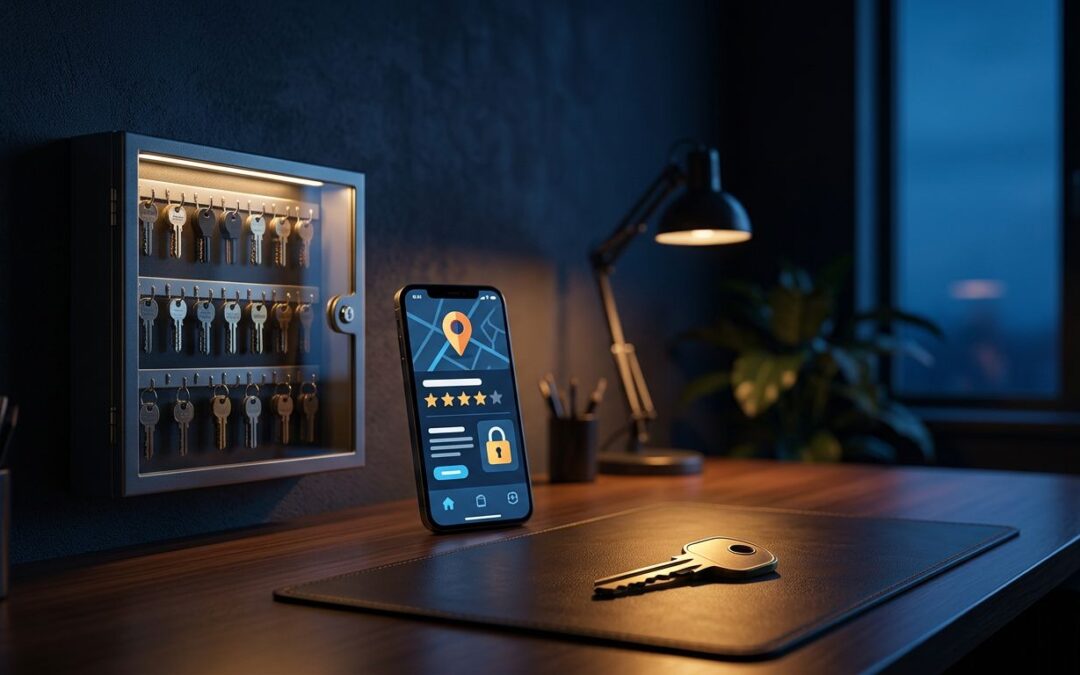
Google Business Profile access is easier to manage when every person uses an individual Google account, each role matches the work involved, and ownership is documented. We recommend setting up access like you would issue keys to an office: give the right key, track who has it, and collect it when the work ends.
Why Profile Access Deserves Attention
Your Google Business Profile affects local visibility, calls, directions, reviews, and customer trust. Anyone with access may be able to change important business information, publish updates, respond to reviews, or alter how customers find you.
A shared login makes the problem harder to track. You may not know who changed the phone number, removed a user, or updated the business category. It also creates a security issue when an employee leaves or an agency relationship ends.
We recommend three basic rules:
- Use individual Google accounts instead of shared usernames and passwords.
- Give each person the lowest access level needed for the job.
- Review the user list after staffing changes, agency changes, and ownership changes.
A manager can handle much of the daily profile work, but only owners can manage other users. That difference matters when access needs to be removed quickly.
Google Business Profile Permissions by Role
Google currently uses three access states for most Business Profile management: primary owner, owner, and manager. There can be multiple owners, but only one person can be the primary owner.
Google describes owners as having full control, while managers have most day-to-day access without user-management rights. Google may update labels, menus, or eligibility requirements, so compare your screen with the current Google owner and manager instructions if the options look different.
| Role | Can do | Cannot do |
|---|---|---|
| Primary owner | Manage the profile, add or remove users, delete the profile, and transfer primary ownership | Remove themselves before transferring primary ownership |
| Owner | Manage the profile, add or remove users, and delete the profile | Transfer primary ownership unless they become the current primary owner |
| Manager | Handle most daily profile work and remove themselves | Add or remove other users, delete the profile, or transfer primary ownership |
Primary ownership needs one accountable person
The primary owner should be the business owner or a trusted person inside the business. This account controls the transfer of primary ownership and cannot simply remove itself from the profile.
If a marketing agency becomes the primary owner, the business may have trouble recovering control when the contract ends. We recommend keeping primary ownership with the business and giving outside partners manager or owner access only when their work requires it.
Owner access fits trusted partners
An owner can manage users and has broad control over the profile. This role may fit a business partner, senior employee, or long-term agency that needs to administer access for a team.
That access should still be limited. An owner can make changes that affect your listing and can remove other users, so don't assign the role only because someone needs to publish posts or answer reviews. A manager may cover those tasks without creating another user administrator.
Manager access fits daily marketing work
A manager is often the right choice for an employee or marketer who handles routine updates. This can include profile information, posts, photos, messages, and review responses, depending on the features available to that account.
Managers can't add or remove other users, and they can't remove the profile. They can remove themselves, which gives a departing contractor a way to leave without changing anyone else's access.
Add Access Without Creating New Risks
Before adding anyone, decide what the person needs to do. Don't begin with the highest role and hope to reduce it later. Start with manager access, then increase it only when a clear task requires owner-level control.
Check the account before sending an invitation
Confirm the person's exact Google account email address. A small spelling mistake can send access to the wrong account, and a personal Gmail address may be difficult to identify later if several contractors work with you.
We recommend asking the user to provide the email address they will use to sign in. Record that address, the assigned role, the date access was granted, and the business reason for the access.
Don't use a shared agency login or add a Google Group. Google's current guidance says Google Groups can't be added as Business Profile owners or managers. Each person should accept access through their own account.
Use People and access to add a user
The current Google flow usually looks like this:
- Sign in to the Google account that owns the Business Profile.
- Search for the business on Google, or open the profile management area.
- Select More, then Business Profile settings.
- Open People and access.
- Select Add, enter the person's name or email address, and choose Owner or Manager.
- Send the invitation and ask the user to accept it from the correct Google account.
The exact wording may change as Google updates the interface. Look for the user-access area under Business Profile settings rather than relying on an old screenshot or a menu label that no longer appears.
After the invitation is accepted, check the access list again. Confirm the person appears under the correct email address and has the intended role. These small checks keep Google Business Profile permissions organized before a problem occurs.
Remove Users and Transfer Ownership Carefully
Removing an employee from your company or an agency from your account should trigger an access review. Don't wait for the next quarterly check. Former users should be removed as soon as their work ends.
Remove former users promptly
Only owners can remove other users. In the access list, select the person whose access should end and use the available remove option. Managers can't remove someone else, but they can remove themselves.
Removing a user doesn't delete your Business Profile. It only removes that account's connection to the profile. Review the remaining users after the change, especially if the person who left was an owner or primary owner.
If the primary owner is leaving, don't remove the account first. The primary owner must transfer primary ownership to another eligible user before leaving the profile. Google's primary ownership transfer guidance covers the current process.
Transfer primary ownership with a written handoff
A transfer should be planned, not treated as a quick permission change. Confirm the receiving account, document the date, and keep a record of who will control the profile afterward.
The current primary owner normally opens Business Profile settings, selects People and access, chooses the user, selects Edit beside access, changes the role to Primary owner, and saves the change. Only the current primary owner can complete this transfer.
Google may apply waiting periods to certain ownership actions. Current guidance includes a seven-day period in some ownership situations, especially for newly added users. Add the incoming person early, allow the account to become eligible, and avoid scheduling the entire handoff on the same day.
Troubleshoot Common Access Problems
Most access problems come from using the wrong Google account, assigning the wrong role, or following an older set of instructions. Start with the account and role before assuming the profile is broken.
The invitation never appears
First, confirm the invitation went to the correct email address. Ask the user to check spam, promotions, and every Google account signed in on the device.
Then return to People and access and check whether the invitation is still pending. If the interface provides a resend option, resend it after correcting the address. The recipient should accept the invitation while signed in to the account that received it.
If the person accepted the invite but still can't access the profile, have them sign out of extra Google accounts or use a private browser window. Multiple signed-in accounts can make it unclear which account Google is using.
The Add or Remove option is unavailable
Check your own role first. Managers can't add or remove other users, so an owner must complete those actions. Also confirm that you're managing the correct business and not another listing under the same Google account.
If People and access is missing, Google may have changed the menu location, the profile may be under a different management setup, or the account may not meet a current eligibility requirement. Check Google's updated help instructions before changing ownership or creating a second profile.
Google Groups also can't be assigned as owners or managers. Use an individual account instead.
The ownership transfer won’t complete
Confirm that the current primary owner is making the change. An owner or manager can't transfer primary ownership on someone else's behalf.
Next, check whether the recipient has accepted the invitation and whether a Google waiting period applies. Newly added users may not be eligible for every ownership action immediately.
If nobody with the right access is available, use Google's ownership request process. Keep proof of the business relationship and ownership details available. Google may ask for information before changing access.
Build a Regular Access Review
We recommend reviewing Business Profile users at least every three months. Review them sooner after an employee leaves, a marketing contract ends, or the business changes hands.
Compare the access list with your current staff and vendors. Remove old accounts, reduce unnecessary owner access, and confirm that the primary owner is still connected to the business.
Keep a simple ownership record with:
- The primary owner's name and email address
- Every owner and manager account
- The reason each person has access
- The date access was added or changed
- The process for recovering the profile if the primary owner becomes unavailable
This record helps prevent confusion when staff changes happen months later. It also gives your team a clear starting point if an ownership dispute develops.
Google provides additional guidance on removing profile access and content in its Business Profile removal documentation. Follow that guidance carefully because removing profile content is different from removing a user's access.
Protect the Profile With Clear Ownership
Safe Google Business Profile permissions come down to control, records, and regular reviews. Keep primary ownership with the business, use manager access for routine marketing work, and reserve owner access for people who truly need to manage users.
When someone leaves, remove access promptly. When ownership changes, plan the transfer and account for Google's waiting periods. A short review every few months can protect the profile that customers use to call, visit, and trust your business.