
A business can rank first on Google Maps near its address and disappear a few miles away. That's why a local SEO geo grid audit gives you a clearer view than checking one search result from one location.
A geo grid shows how a Google Business Profile performs across a service area. We can use it to find weak neighborhoods, compare competitors, and connect ranking patterns to practical fixes. The process starts with clean tracking, not guesses, so let's begin with what the audit actually measures.
Key Takeaways
- A geo grid measures local pack and Google Maps visibility across multiple search points.
- Use three to five priority searches, the correct Google Business Profile location, and a grid that matches the real service area.
- Green, yellow, and red areas show where visibility is strong, moderate, or weak. They don't explain the cause by themselves.
- Audit categories, reviews, citations, local pages, links, and technical issues alongside the map.
- Re-run the audit on a regular schedule, but don't treat rankings as guaranteed. Proximity is a major local factor you can't fully control.
What a Local SEO Geo Grid Audit Measures
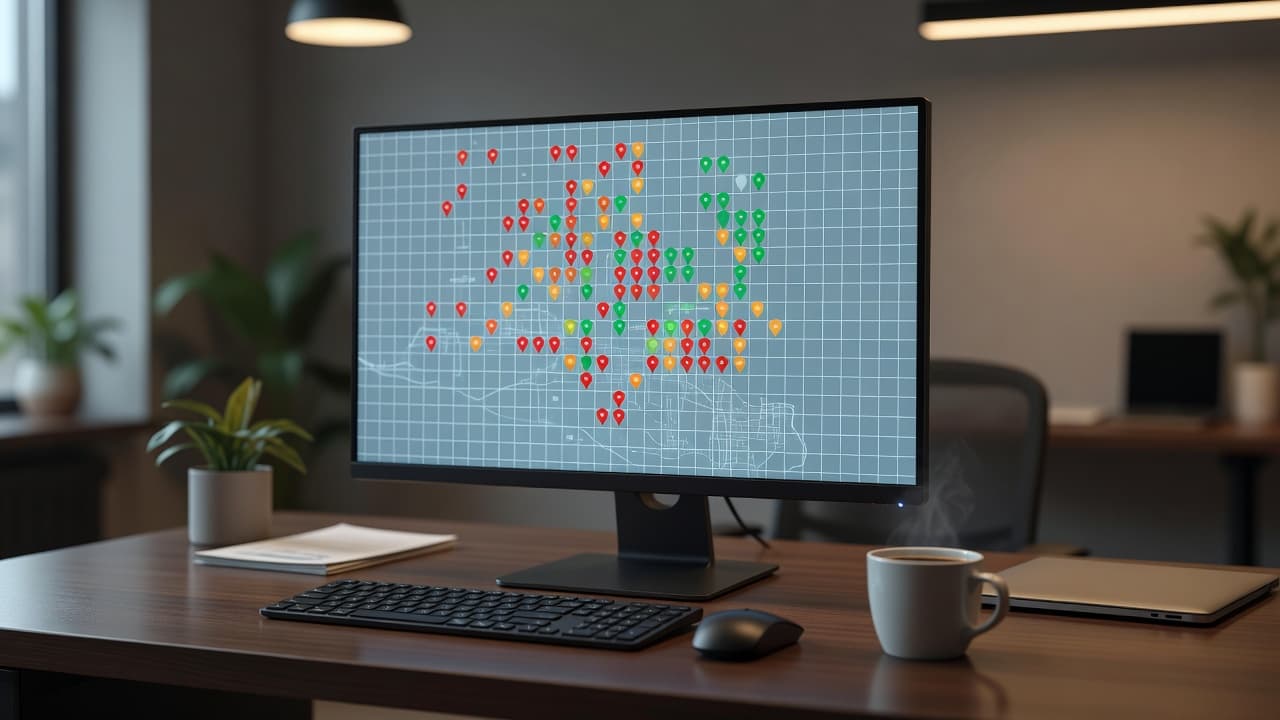
A geo grid is a map covered with search points. The tool runs a local search from each point and records where your business appears.
Most tools display the results as colored pins. Green usually means the business appears near the top, yellow means moderate visibility, and red means weak or missing visibility. The exact color rules vary by provider, so check the tool's ranking ranges before comparing reports.
A local SEO geo grid audit focuses on local pack and Maps performance. That means the three-business local pack shown in Google Search, plus the broader results shown in Google Maps or the Local Finder.
It doesn't measure organic rankings in the same way.
Your website may rank well in the traditional organic results while your Google Business Profile performs poorly in the map results. The opposite can happen too. A strong profile may appear in the local pack, while the connected website has weak service pages or technical problems.
We track both areas, but we don't mix the data. A useful report separates:
- Local pack visibility
- Google Maps or Local Finder visibility
- Organic rankings for location-based pages
- Calls, website visits, direction requests, and other GBP actions
Search location also matters. Google may adjust results based on the searcher's physical location, device, search history, and other signals. A single manual search from your office isn't a reliable picture of the whole market.
A ranking at the business address is only one data point. Customers searching from nearby neighborhoods may see a different result.
A geo grid turns that one data point into a pattern. Patterns are easier to act on because they show where visibility changes and where the business loses ground.
Prepare the Business Profile and Audit Data
Good tracking starts with accurate business information. If the tool is connected to the wrong listing, address, or keyword, the report can look precise while measuring the wrong thing.
First, confirm the exact Google Business Profile you want to audit. Use the verified business location, not a general brand listing or an old profile. Many geo grid tools let you select the profile through Google Search or paste the Google Maps URL for the listing.
Next, define the area that matters. Think about where customers actually come from, where you provide service, and where competitors are active. A large grid covering an entire metro area may look impressive, but it can hide the neighborhoods that matter most.
A local plumbing company may need a tight grid around the city and nearby suburbs. A law firm may serve a wider area, but its audit should still reflect realistic client locations. Don't draw a target market based only on the places where you want to rank.
Choose three to five priority searches for the first scan. Use searches that match real services and local intent, such as:
- "roof repair near me"
- "emergency plumber"
- "electrician Forest Hill"
- "family dentist"
- "personal injury lawyer"
Use the primary service first. Add a secondary service, a high-value service, and one "near me" variation when those searches reflect how customers search.
Avoid adding dozens of loosely related keywords at the beginning. A crowded report makes it harder to tell which service has a visibility problem.
Before running the scan, record the business name, address, phone number, primary category, service area, website URL, and current review count. Add the scan date and tool settings too. This gives you a baseline for future comparisons.
Tools differ in features and reporting. BrightLocal's geo-grid tool comparison is useful when comparing grid size, reporting, competitor tracking, and pricing.
Choose the Grid Size and Scan Settings
The grid needs enough points to show movement without wasting time and budget on areas you don't serve.
A common starting point is a 9 by 9 or 13 by 13 grid. The business location sits near the center, and the points spread outward at a selected distance. Some tools describe this as the grid size, while others focus on radius and point spacing.
For a suburban business, one-mile spacing can provide a useful first view. Dense urban areas often need tighter spacing because several neighborhoods can fit inside a small radius. A spacing of about 0.2 miles may show meaningful differences in a busy city center.
These are starting points, not fixed rules. The right setting depends on the customer area, population density, business type, and travel distance.
Set the scan around the location that matters most. If the business serves customers at its storefront, center the grid on that location. If it travels to customers, center the grid around the main service area or use several smaller scans for important communities.
Keep the following settings consistent between audits:
- Search keyword
- Google Business Profile location
- Grid dimensions
- Point spacing or radius
- Search language
- Device type
- Scan date and time, when available
Consistency makes reports easier to compare. If you change from a five-mile grid to a fifteen-mile grid, a lower average ranking may reflect the wider area rather than a real performance decline.
Run one scan per priority keyword. Don't combine services into one phrase unless people genuinely use that phrase. "Plumber" and "water heater repair" can produce different competitors, categories, and ranking patterns.
Local search tools may also show competitors that repeatedly appear across the grid. Save those names. They give you a useful comparison set for profiles, reviews, categories, content, and local links.
Run the Geo Grid Scan
Once the setup is ready, create the campaign or report inside your chosen rank-tracking tool. Providers such as BrightLocal, Local Falcon, Semrush Map Rank Tracker, Places Scout, RankNow, and Grid My Business offer versions of local grid tracking. Features, scan limits, and pricing vary, so select the tool that fits your reporting needs.
RankNow's local SEO software describes geo-grid tracking for Google Local Pack visibility and related local reporting. Grid My Business also focuses on map-based local rank tracking.
The basic workflow is straightforward:
- Select the correct Google Business Profile location.
- Add the three to five target keywords.
- Set the grid radius, point spacing, and matrix size.
- Select the appropriate language and device settings.
- Run the scan and wait for the results to finish.
- Export or save the report with the scan date and settings.
Review the first scan without changing anything. The initial report is your baseline. You want to see the business's average position, strongest points, weakest points, and the competitors that appear most often.
Look for patterns instead of focusing on one isolated pin. One red point near a highway or boundary may not matter. A cluster of red points across several neighborhoods deserves attention.
The tool may report an average ranking, visibility percentage, or share of top positions. These metrics are helpful for trends, but they can hide uneven performance. A business ranking first in one area and twentieth in another may have an acceptable average while still missing valuable customers.
Save the raw result if the platform allows it. A screenshot is also useful, especially when you need to compare changes with a client or business owner. Keep the same naming format for every report, such as "Primary Service, City, March 2026."
Don't make changes immediately after seeing a poor map. First, confirm the scan settings, review the profile, and compare the map with business data. A bad result needs diagnosis before action.
Read the Heatmap Without Overreacting
The heatmap tells you where the business appears. It doesn't tell you why.
Start at the business location and move outward. Notice how far the strong rankings extend. Then look for the point where visibility drops. This distance can reveal how much the result is shaped by proximity.
A common pattern is green near the business, yellow a few neighborhoods away, and red at the edge of the service area. That pattern may be normal, especially in competitive markets. Google uses proximity as one local ranking factor, and a business can't fully control how far its relevance and prominence extend.
A different pattern needs a closer look. If the profile ranks well at its address but turns red two blocks away, prominence may be weaker than expected. If it is red across the entire grid, check for larger problems such as an incorrect primary category, a profile issue, weak relevance, or a competitive market.
A report can also show a strong north side and a weak south side. Compare those areas with:
- Competitor density
- City or neighborhood boundaries
- Service availability
- Local landing pages
- Review patterns
- Citation accuracy
- Relevant local links
The map should guide your questions. It shouldn't push you into random edits.
Pay attention to the competitor column as well. If one competitor appears in nearly every point, open that profile and compare its primary category, services, photos, review volume, review language, and business description. Don't copy it word for word. Look for signals your profile is missing or presenting poorly.
Some tools provide a grid visibility score. Use it as a trend line, not a promise. A higher score can show improved coverage, but it doesn't guarantee calls, sales, or permanent rankings.
Local Falcon's geo-grid visibility tracking is one example of a tool category built around map-based ranking coverage. The important point is not the provider. It's the ability to compare the same market area over time.
Audit the Google Business Profile First
The profile is the first place we check after finding a weak grid area. Google needs clear, accurate information about what the business does and where it operates.
Review the primary category carefully. It should describe the core business, not a broad category that sounds related. A plumber and a plumbing supply store may serve the same industry, but they don't belong in the same primary category.
Check the secondary categories too. Add only categories that accurately describe real services. Irrelevant categories can confuse the profile and create poor customer expectations.
Review these profile fields:
- Business name and address
- Primary and secondary categories
- Phone number and website
- Service area
- Business hours and holiday hours
- Services and service descriptions
- Attributes
- Photos and videos
- Questions and answers
- Customer reviews and responses
Use the real business name. Don't add extra keywords or location names to the name field unless they are part of the legal or public-facing business name. Keyword-stuffed names can create profile problems and reduce trust.
Photos should show the actual business, team, work, products, or location. Add useful images over time, but don't treat photo uploads as a replacement for accurate categories and strong service relevance.
Reviews need more than a star rating. Look at review count, recent activity, and the language customers use. If customers repeatedly mention "boiler repair" or "emergency drain cleaning," those details can help you understand the services people associate with the business. Never ask customers to leave a specific rating or use a scripted phrase.
Reply to reviews in a human way. Mention the service when it fits naturally, but don't turn every response into a keyword exercise.
Check the Website, Citations, and Local Relevance
A geo grid can expose a profile problem, but the website often explains why relevance is weak.
Start with the service pages connected to the profile. A business that wants visibility for roof repair should have a clear roof repair page, not one general page listing every service. Each page should explain the service, service location, process, limitations, and next step.
Use natural local references. Name the cities, neighborhoods, counties, or landmarks the business genuinely serves. Avoid creating thin pages that swap one city name for another without adding useful local information.
Review title tags, H1 headings, internal links, contact details, and calls to action. A heading such as "Expert Plumber in Forest Hill" can make the page's purpose clear when the business truly serves Forest Hill. It shouldn't be used to target a location where the company doesn't operate.
Check whether Google has indexed the important pages in Search Console. Also review mobile usability, page speed, broken links, redirects, and form performance. A slow or confusing page can waste visits even when the profile earns a map impression.
Local citations still matter as a data consistency check. Compare the business name, address, and phone number across the website, directories, chamber pages, industry sites, and major platforms. Search the business phone number in quotation marks to find old listings and inconsistent versions.
Create a spreadsheet with the listing URL, business details, category, status, and correction needed. Start with the most important sources. Don't spend hours fixing low-value directories while the Google Business Profile or website has incorrect information.
Local relevance also comes from real community connections. Look for local sponsorships, associations, suppliers, news coverage, and professional organizations that may link to the business website. These links should come from genuine relationships, not bulk packages.
Separate Map Problems From Organic Problems
A local SEO report becomes confusing when every ranking issue gets labeled a Google Business Profile issue.
Map rankings usually connect to the profile, local relevance, prominence, reviews, citations, and proximity. Organic rankings depend more directly on the website's content, technical health, internal linking, backlinks, and search intent.
A business can have:
- Strong organic rankings and weak Maps visibility
- Strong Maps visibility and weak organic service pages
- Weak performance in both areas
- Different results for different services
Use separate columns in the audit report. Record the geo grid position for each keyword, then record the organic position of the most relevant page. Include clicks, impressions, calls, website actions, and direction requests when available.
This separation helps prevent the wrong fix. If the profile ranks well but the service page is invisible organically, adding more GBP posts probably won't solve the problem. Improve the page, internal links, technical setup, and relevant authority signals instead.
If the website ranks organically but the profile is missing from the map, check categories, service details, profile verification, reviews, citations, and business information.
Search Console is useful for organic query and indexing data. Google Business Profile performance data is more relevant for profile interactions. Neither replaces a geo grid because neither shows the same neighborhood-by-neighborhood ranking pattern.
We use the grid to locate the problem, profile and website audits to explain it, and conversion data to judge whether the work helps the business.
Turn Weak Grid Areas Into an Action Plan
A red area is not an instruction to create a fake location. Don't add an address where the business has no real staffed location, and don't create duplicate profiles for nearby towns.
Instead, group findings by cause and impact. A simple action plan might look like this:
- Correct an inaccurate primary category or business hour.
- Fix an old phone number or address across important citations.
- Improve a weak service page for the target search.
- Add missing services and accurate descriptions to the profile.
- Request honest reviews from recent customers without scripting them.
- Build a small number of relevant local relationships and links.
- Repair indexing, mobile, speed, or conversion problems.
Prioritize issues that affect trust and relevance first. An incorrect phone number can lose customers immediately. A missing service page can weaken both organic visibility and profile relevance.
Set a realistic review period. Local rankings can change for reasons outside your control, including competitors, search demand, Google testing, and proximity. Don't run a scan today, make one edit tomorrow, and declare the strategy successful or unsuccessful.
For most small businesses, a monthly check on important keywords and a fuller audit each quarter is practical. Re-run the same grid before changing the settings. Add a second grid only when the business has a clear reason to measure another service area.
Track movement alongside business outcomes. A better color pattern is useful, but calls, form submissions, direction requests, booked appointments, and qualified leads matter more.
Report Findings Clearly
A good local SEO geo grid audit should help someone decide what to do next. Avoid sending a map without an explanation.
Start the report with the scan date, profile location, keywords, grid size, spacing, and tool used. Then show the heatmap for each important search. Add a short explanation of the strongest and weakest areas.
For each problem, document:
- What the scan shows
- What information supports the diagnosis
- What action should happen next
- Who owns the task
- When the result will be checked
Use plain language. "Visibility drops south of downtown for emergency plumbing" is more useful than "local presence is underperforming."
Include competitors when they help explain the pattern. Compare the businesses that appear often, but don't assume the competitor with the highest ranking has the best overall marketing. Their profile may rank well while their website converts poorly.
Keep a baseline report before making changes. Later scans should show whether visibility moved, stayed stable, or shifted to another area. A ranking loss in one zone may happen at the same time as improvement in another.
We also recommend recording changes between scans. Note category edits, new pages, citation corrections, review growth, major links, and technical fixes. Without a change log, it's easy to forget what happened and misread the next report.
The goal isn't to paint every point green. The goal is to understand where the business is visible, where it isn't, and which improvements are reasonable for the market.
Conclusion
A local SEO geo grid audit replaces one reassuring search result with a more useful view of the market. It shows where the Google Business Profile appears in the local pack and Maps, while separate organic tracking shows how the website performs.
Start with the correct profile, a realistic service area, and three to five important searches. Read the heatmap as evidence, then check categories, reviews, citations, local pages, and technical health before making changes.
No audit can guarantee a position in every neighborhood. Proximity remains outside your full control. What you can control is the accuracy, relevance, trust, and usefulness of the business information customers and Google find.